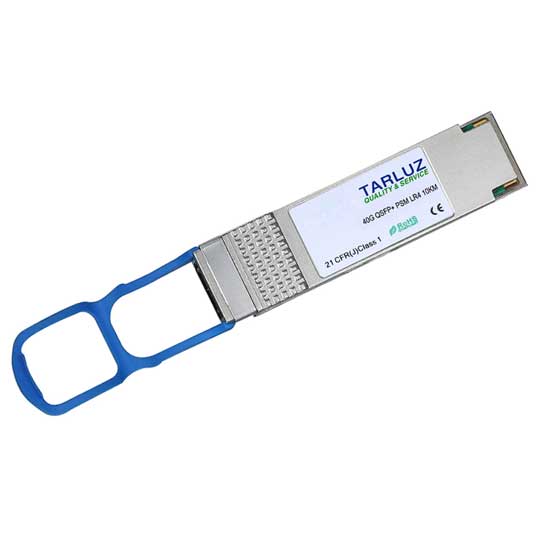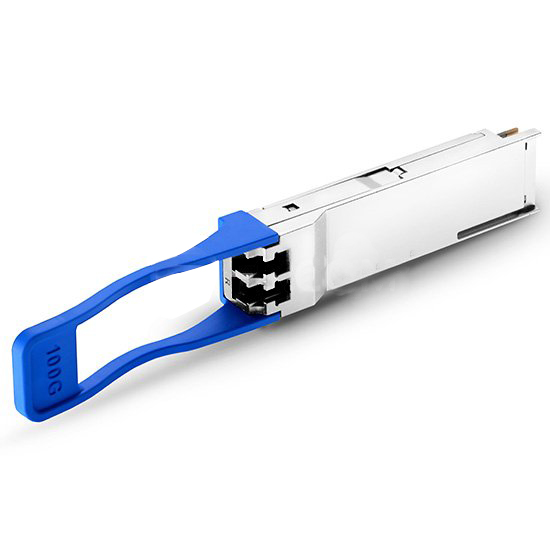


After inserting an optical module, the switch interface indicator does not light up, and the link cannot communicate normally. In device interconnection, this often indicates that the interface failed to start up properly. If the status shows « DOWN (Transceiver Type Mismatch) » when checked, it is usually not due to hardware damage but is more likely related to compatibility or configuration mismatches between the optical module and the device. The following sections will use HW CE series switches as an example to systematically outline common causes and troubleshooting steps, helping you quickly identify and resolve the issue.
Fault Symptoms
When connecting CE series switch interfaces, the interface indicator does not light up, indicating that the interface failed to start up properly. Use the display interface command on the device to check the interface status:

Common Causes
When encountering interface DOWN (Transceiver Type Mismatch), consider the following aspects:
1. Improper Media Selection or Configuration
(1) Incorrect cable usage: In some CE6875EI devices and specific versions, 40G QSFP+ / 100G QSFP28 high-speed cables are designated for stacking or M-LAG peer-link scenarios. If the port is used for service connections without being configured for the corresponding mode, the device may report Transceiver Type Mismatch.
(2) Cable function not enabled: For 25GE interfaces using 3m or 5m SFP28 high-speed cables, RS-FEC function usually needs to be enabled to ensure proper link negotiation. If the FEC mode does not match the peer end, the interface may show DOWN (Transceiver Type Mismatch).
2. Mismatch Between Optical Module Type and Interface Configuration
(1) Configuration conflict after replacing optical modules: If the device configuration is saved and a new optical module or board that does not support the original configuration is replaced, this error may occur. It is necessary to roll back the configuration or revert to a compatible module.
(2) Split state conflicts with optical module: Inserting a parallel optical module (e.g., 40G SR4, 100G SR4) that requires split-mode operation into a non-split interface, or inserting a non-split optical module into a split interface, may trigger Transceiver Type Mismatch.
(3) When 40GE/100GE interfaces use high-speed cables and have training disabled, if one interface is replaced with a 40GE optical module without executing the undo training disable command, a mismatch may occur.
3. Mismatch Between Optical Module Type and QSA Adapter
On models like CE6855HI/CE6856HI/CE7855EI, the 40GE interface must be configured for splitting before inserting a QSA adapter to use a 10GE module. If a QSA adapter is inserted without splitting, or if a non-10GE module is inserted after splitting, the interface will remain DOWN (Transceiver Type Mismatch) due to type mismatch.
Troubleshooting Steps
-
Verify Physical Media: First, check and confirm whether the optical module, fiber, or cable used matches the interface rate, encapsulation format, and vendor compatibility requirements. Many « mismatch » issues stem from using non-standard or insufficiently validated media.
-
Check Device Configuration: Log in to the device and review the relevant configuration for the interface (such as split state, rate, training mode, etc.) to ensure it aligns with the actual capabilities of the currently inserted optical module. If conflicts exist, adjust the configuration or replace the module.
-
Verify Adapter Compliance: If a QSA adapter or similar is used, strictly confirm according to the product manual whether the interface has been properly configured for splitting and whether the module type and rate inserted into the adapter fully comply with specifications.
If the interface status remains DOWN (Transceiver Type Mismatch) after performing the above three steps, contact the original manufacturer’s technical support.